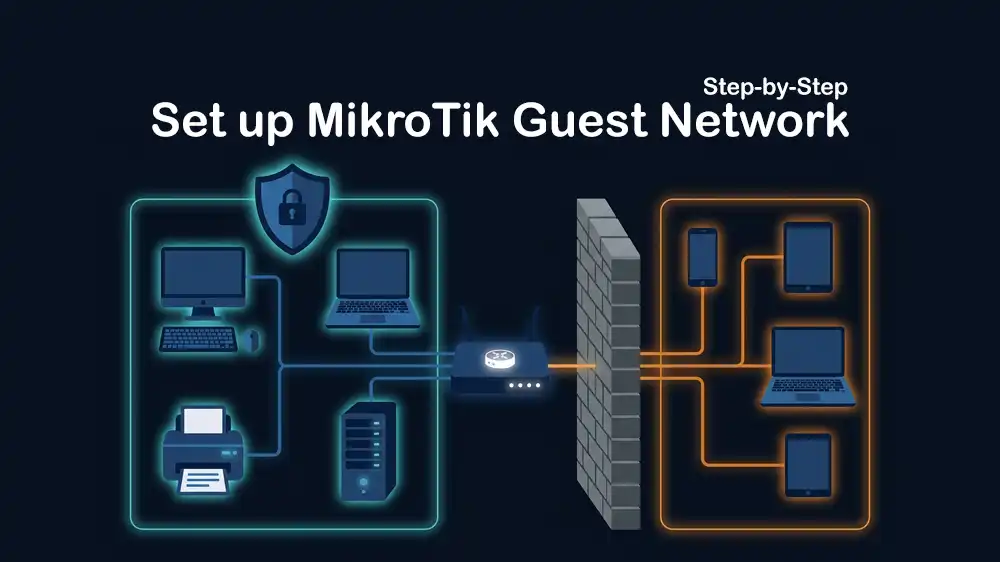
How to Set Up a Guest WiFi Network on MikroTik Step-by-Step
If you run a small office, clinic, or co-working space, you already know the visitors ask for the WiFi password, and before you know it, their devices are sitting on the same network as your printers, file servers, and everything else. A proper MikroTik guest WiFi setup solves this by giving visitors internet access while keeping your main LAN completely out of reach.
In this guide, you will learn how to build a fully isolated guest network on MikroTik RouterOS, from creating the virtual access point all the way to setting bandwidth limits so one guest can’t take up your entire connection.
Table of Contents
What You Will Need for MikroTik Guest WiFi Setup
Before starting the MikroTik guest WiFi setup, make sure you have the following ready:
- A MikroTik router running RouterOS v6.45 or newer. RouterOS 7 works too.
- WinBox is installed on your computer, or access it via the web interface.
- Your main LAN is already working with internet access.
- Admin credentials for your router.
For this guide, we use this network plan:
| Network | Subnet | Interface |
|---|---|---|
| Main LAN | 192.168.88.0/24 | bridge (ether ports + wlan1) |
| Guest Network | 192.168.99.0/24 | guest-vlan / guest-wlan |
Why Separate Guest Network in MikroTik?
Before diving into the MikroTik guest WiFi setup steps, it is worth understanding why isolation matters.
When a guest connects to your main WiFi, they share the same Layer 2 broadcast domain as your internal devices. This means they can potentially see file shares, access your printer, probe internal IPs, and even try to reach your router’s admin panel.
In a clinic or office, this is a real security risk; patient data, financial records, or internal systems could be exposed.
A proper guest network puts visitors on a completely different subnet, with firewall rules blocking any path into your main LAN. They get internet and nothing else.
Two Methods for MikroTik Guest WiFi Setup: Which One Should You Use?
There are two main methods for MikroTik guest WiFi setup:
| Method | How It Works | Best For |
|---|---|---|
| Separate Bridge (Simple) | Create a second bridge, and add a virtual AP to it | Home users, small offices, single router |
| Bridge VLAN Filtering | Single bridge with VLAN filtering enabled, VLAN ID for guests | Offices with managed switches, multi-AP setups, and enterprise |
For most small offices and co-working spaces, the Separate Bridge method is easier to set up and troubleshoot. For environments with managed switches or multiple access points, Bridge VLAN Filtering is more scalable.
This guide covers both methods so you can pick the one that fits your setup.
Method 1: Separate Bridge
This is the simplest way to do a MikroTik guest WiFi setup. You create a new bridge, assign it a subnet, and attach a virtual wireless interface to it.
Create a Guest Security Profile
First, you must set up a wireless security profile for the guest SSID. Open WinBox and go to Wireless → Security Profiles, click + to add a new profile, and fill in:
- Name: guest-security
- Mode: dynamic keys
- Authentication Types: check
wpa2-pskonly - Encryption:
aes ccm - WPA2 Pre-Shared Key: set a guest password, for example,
Guest@2025
Once you are done, click OK.
Also, you can do it from the terminal:
/interface wireless security-profiles
add name=guest-security mode=dynamic-keys authentication-types=wpa2-psk \
    wpa2-pre-shared-key=Guest@2025
Create a Virtual Wireless Access Point
Now you must create a second SSID (Virtual AP) that will be the guest WiFi. Go to Wireless, click +, select Virtual, and fill in:
- Name: guest-wlan
- Mode: ap bridge
- Master Interface: wlan1, your main wireless interface
- SSID: Guest-WiFi
- Security Profile: guest-security
On the Wireless tab, uncheck Default Forward, which prevents guests from talking to each other on the same AP. Then, click OK.
From the terminal, you can use:
/interface wireless
add name=guest-wlan mode=ap-bridge master-interface=wlan1 \
    ssid=Guest-WiFi security-profile=guest-security default-forwarding=no
Create a Guest Bridge
At this point, you can create a new bridge that will act as the home for the guest traffic, completely separate from your main bridge.
Go to Interfaces → Bridge, click +, name it guest-bridge, and click OK.
Then, add the guest wireless interface as a port to this bridge. In the Bridge, go to the Ports tab, and click +:
- Interface: guest-wlan
- Bridge: guest-bridge
Click OK.
From the terminal, you can run:
/interface bridge
add name=guest-bridge

/interface bridge port
add interface=guest-wlan bridge=guest-bridge
Assign an IP Address to the Guest Bridge
Now you must give the guest bridge a gateway IP on a different subnet from your main LAN. Go to IP → Addresses and click +:
- Address: 192.168.99.1/24
- Interface: guest-bridge
Click OK.
Also, from the terminal, you can run:
/ip address
add address=192.168.99.1/24 interface=guest-bridge
Set Up a DHCP Server for Guests
Guests need to receive IP addresses automatically. To do this, go to IP → DHCP Server and click DHCP Setup:
- DHCP Server Interface: guest-bridge
- Follow the wizard:
- Network: 192.168.99.0/24
- Gateway: 192.168.99.1
- Address range: 192.168.99.2 – 192.168.99.254
- DNS Servers: 8.8.8.8 or 1.1.1.1
- Lease time: 1h, a short lease is fine for guests
- Click Next through each step until done.
From the terminal, you can use:
/ip pool
add name=guest-pool ranges=192.168.99.2-192.168.99.254

/ip dhcp-server
add name=guest-dhcp interface=guest-bridge address-pool=guest-pool lease-time=1h

/ip dhcp-server network
add address=192.168.99.0/24 gateway=192.168.99.1 dns-server=8.8.8.8
Method 2: Bridge VLAN Filtering
This method uses a single bridge with VLAN filtering enabled, which is the preferred way when you have managed switches or multiple access points. It is a more advanced method, but more efficient.
Enable VLAN Filtering on Your Bridge
Warning: Enabling VLAN filtering on an existing bridge can temporarily break your connection. Do this from a wired connection or use Safe Mode in WinBox (Ctrl+Q).
/interface bridge
set bridge vlan-filtering=yes
Add the Wireless Interface to the Bridge
/interface bridge port
add interface=guest-wlan bridge=bridge pvid=20
The pvid=20 means untagged traffic from the guest WLAN will be placed into VLAN 20.
Define the VLAN in the Bridge VLAN Table
/interface bridge vlan
add bridge=bridge tagged=bridge vlan-ids=20
Create a VLAN Interface and Assign an IP
/interface vlan
add name=guest-vlan20 interface=bridge vlan-id=20

/ip address
add address=192.168.99.1/24 interface=guest-vlan20
Set Up DHCP for the VLAN
/ip pool
add name=guest-pool ranges=192.168.99.2-192.168.99.254

/ip dhcp-server
add name=guest-dhcp interface=guest-vlan20 address-pool=guest-pool lease-time=1h

/ip dhcp-server network
add address=192.168.99.0/24 gateway=192.168.99.1 dns-server=8.8.8.8
Firewall Rules for Guest WiFi Isolation
This is the most important part of any MikroTik guest WiFi setup. Without proper firewall rules, guests can still reach your main network even if they are on a different subnet.
The firewall rules below do three things:
- Allow guests to use the internet; forward to the WAN.
- Block guests from reaching the main LAN, 192.168.88.0/24.
- Block guests from accessing the router itself, except DNS and DHCP.
Add an Address List for the Main LAN
This makes the rules easier to manage:
/ip firewall address-list
add address=192.168.88.0/24 list=main-lan
add address=192.168.99.0/24 list=guest-lan
Firewall Filter Rules
Add these rules in order. In MikroTik, rules are processed top to bottom, so order matters:
/ip firewall filter

# Rule 1: Allow established and related connections (keeps internet working)
add chain=forward connection-state=established,related action=accept \
    comment="Allow established/related"

# Rule 2: Drop invalid connections
add chain=forward connection-state=invalid action=drop \
    comment="Drop invalid"

# Rule 3: Block guests from reaching main LAN
add chain=forward src-address-list=guest-lan dst-address-list=main-lan \
    action=drop comment="Block guest to main LAN"

# Rule 4: Allow guests to reach the internet
add chain=forward src-address-list=guest-lan out-interface=ether1 \
    action=accept comment="Allow guest internet"

# Rule 5: Block guests from accessing the router (admin ports)
add chain=input src-address-list=guest-lan dst-port=80,443,8291,22,23,21 \
    protocol=tcp action=drop comment="Block guest router access"

# Rule 6: Allow guests to use DNS and DHCP from the router
add chain=input src-address-list=guest-lan dst-port=53 protocol=udp \
    action=accept comment="Allow guest DNS"
add chain=input src-address-list=guest-lan dst-port=67,68 protocol=udp \
action=accept comment="Allow guest DHCP"Note: Replace ether1 with your actual WAN interface name.
NAT Masquerade for Guest Internet Access
If your main NAT rule only covers the main LAN, guests won’t get internet. Make sure your masquerade rule covers all private subnets or use a broad rule on the WAN interface:
/ip firewall nat
add chain=srcnat out-interface=ether1 action=masquerade \
    comment="Masquerade all to WAN"
If you already have a masquerade rule, check that it does not have a src-address restriction that would exclude the guest subnet. Simply removing the src-address from the NAT rule fixes the most common issue with guests having no internet.
Tip: If you want to harden your router further beyond this setup, check out this MikroTik Firewall Best Practices guide.
Bandwidth Limiting for Guests
Once your MikroTik guest WiFi setup is running, the next thing to handle is bandwidth. Without limits, one guest streaming video can slow down your whole connection.
Option A: Simple Queue | Limit the Whole Guest Network
This method puts a total cap on all guest traffic combined:
/queue simple
add name=guest-bandwidth target=192.168.99.0/24 \
    max-limit=20M/20M comment="Guest network bandwidth cap"
This limits all guests together to 20 Mbps down and 20 Mbps up.
Option B: PCQ Queue | Limit Per User
PCQ (Per Connection Queuing) divides bandwidth fairly between users, so if 5 guests are connected, each gets an equal share.
/queue type
add name=pcq-download kind=pcq pcq-classifier=dst-address pcq-rate=5M
add name=pcq-upload kind=pcq pcq-classifier=src-address pcq-rate=5M

/queue simple
add name=guest-pcq target=192.168.99.0/24 \
    queue=pcq-upload/pcq-download max-limit=50M/50M \
    comment="Guest PCQ - 5Mbps per user"
With this setup, each guest is limited to 5 Mbps, and the total for all guests is capped at 50 Mbps.
Block Guests from Seeing Each Other (Optional)
By default, guests on the same WiFi can communicate with each other. To prevent this, you already unchecked Default Forward in Step 2. That handles same-AP isolation.
For additional isolation through the firewall:
/ip firewall filter
add chain=forward src-address-list=guest-lan dst-address-list=guest-lan \
    action=drop comment="Block guest to guest traffic"
This rule drops any traffic between guest devices routed through the router.
Test MikroTik Guest WiFi Setup
After completing the MikroTik guest WiFi setup, test everything before handing out the password. Tests to run include:
1. Connect a phone or laptop to your Guest-WiFi SSID: It should get an IP in the 192.168.99.x range from DHCP.
2. Test internet access from the guest device: Open a browser and load a website.
3. Try to ping your main LAN from the guest device: This should fail; Request Timeout.
ping 192.168.88.14. Try to open WinBox or the router web interface from the guest device: Access to the router itself should be blocked.
192.168.99.1:805. Check bandwidth limiting: Run a speed test from a guest device; it should be capped at your configured limit.
If a test fails, go back to the firewall rules and check that the rules are in the correct order. In MikroTik, a misplaced accept rule before a drop rule will let traffic through.
Common Issues and Fixes
Even with a clean setup, things don’t always work perfectly the first time. Below are the most common problems people run into after completing a MikroTik guest WiFi setup, with straightforward fixes for each one.
Most issues depend on firewall rule order, a missing NAT rule, or a wrong interface name, so go through this list before you start over from scratch.
| Problem | Cause | Fix |
|---|---|---|
| Guest gets no IP address | DHCP server not running or wrong interface | Check /ip dhcp-server, make sure it’s enabled and on the correct interface |
| Guest has no internet | NAT masquerade excludes guest subnet | Remove src-address from masquerade rule or add a new masquerade rule for the guest subnet |
| Guest can ping main LAN | Firewall rules out of order | Move the drop guest-lan to main-lan rule above any accept rules |
| Guest can access router admin | Missing input chain drop rule | Add the input chain rule blocking ports 80, 443, 8291, 22, 23 |
| Bandwidth limit not working | Queue target wrong | Make sure the target in Simple Queue matches the guest subnet exactly |
| Guest devices see each other | Default Forward still enabled | Uncheck Default Forward on the guest WLAN interface |
Conclusion
A good MikroTik guest WiFi setup gives visitors internet access, keeps them off your main LAN, and makes sure no single user can grab your bandwidth. By following the steps in this guide, you get a professional guest network that works reliably without expensive hardware.
We hope you enjoy this guide. If you want to take your MikroTik setup to the cloud with full policy control and remote management, take a look at PerLod MikroTik VPS Hosting, build more advanced guest access and policy control with a dedicated MikroTik VPS.
FAQs
Can I set up guest WiFi on MikroTik without VLANs?
Yes. The Separate Bridge method in this guide does not require VLANs at all. You create a second bridge, attach a virtual AP to it, and use firewall rules for isolation.
Will guests be able to see devices on my main LAN?
No, as long as your firewall rules are in place. The firewall drop rule for guest-lan → main-lan blocks all traffic between the two subnets.
How many guest users can MikroTik support?
It depends on your hardware model. A standard hAP ac² can comfortably handle 20 to 30 concurrent guest users. Larger models like the RB3011 or CCR series handle hundreds.

