Fix Open WebUI Connection Errors, WebSocket Failures, and HTTPS Proxy
When you expose Open WebUI on a public domain behind Nginx or Caddy, the chat UI starts throwing connection errors, WebSocket failures, or HTTPS warnings that never appeared on localhost. This guide will show you how to fix Open WebUI errors step-by-step, from basic health checks on your local service to your reverse proxy, TLS setup, and browser console.
If you have not installed Open WebUI yet, start with a clean deployment first. You can follow this simple installation guide on Setting up Open WebUI with Ollama.
Table of Contents
Why Things Break After Adding a Domain to Open WebUI
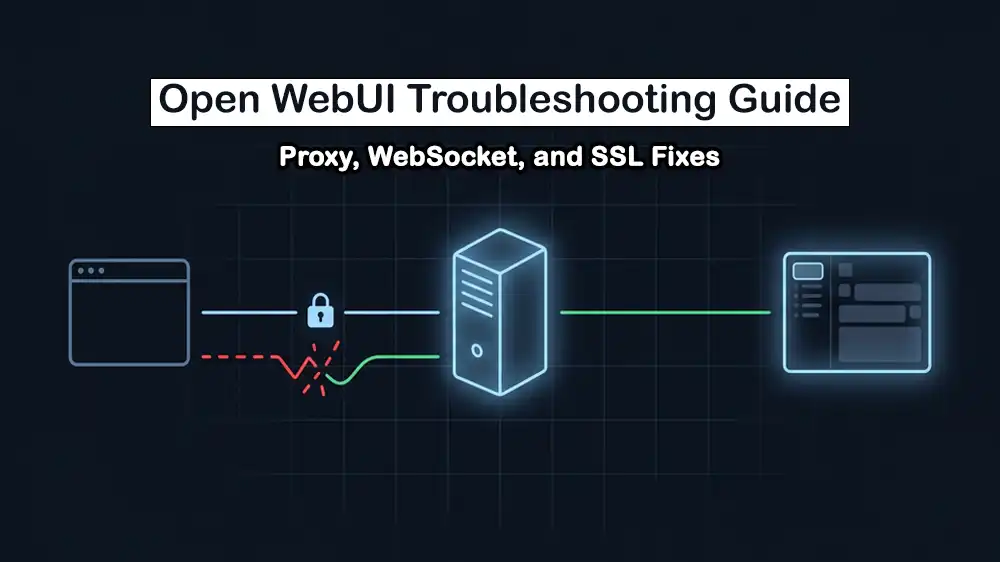
When you run Open WebUI locally, the browser talks to it directly on a port like 3000 or 8080. The moment you add Nginx or Caddy as a reverse proxy, all traffic goes through that proxy first. If the proxy is not configured to handle WebSockets, forward the right headers, or speak HTTPS correctly, the connection breaks.
The most common things that go wrong include:
- The proxy drops the Upgrade and Connection headers WebSocket needs.
- CORS_ALLOW_ORIGIN is still set to localhost while the browser hits your real domain.
- WEBUI_URL points to
http://localhostinstead of yourhttps://yourdomain.com. - proxy_pass points to the wrong upstream address.The
- SSL/TLS certificate is missing, expired, or self-signed without trust.
- Proxy read timeout is too short for long AI responses.
- Proxy buffering is on, which breaks streaming output.
Note: If you need a domain for your Open WebUI deployment, you can register an affordable domain in PerLod.
You can now proceed to the following steps to fix Open WebUI errors.
Step 1: Check If Open WebUI Is Actually Running
Before touching Nginx or Caddy to fix Open WebUI errors, confirm the app itself works. If the container is down, no proxy fix will help.
Check if the container is running:
docker ps | grep open-webuiView real-time logs
docker logs -f open-webuiTest if the app responds locally, it should return HTML:
curl -I http://localhost:3000If curl returns a 200 OK, the app is alive, and the problem is in the proxy layer. If it fails, restart the container:
docker restart open-webuiAlso, verify Ollama is reachable from inside the Docker container. If your Open WebUI is containerized but Ollama runs on the host, use host.docker.internal; not 127.0.0.1.
# Wrong: 127.0.0.1 inside a container points to the container itself
# OLLAMA_BASE_URL=http://127.0.0.1:11434

# Correct: reaches Ollama running on the host machine
# OLLAMA_BASE_URL=http://host.docker.internal:11434
Step 2: Check the Browser Console
Before changing any config, open your browser’s developer tools, press F12, go to the Console tab and the Network tab, and reload the page. This tells you exactly what is failing.
Look for these error patterns:
| Error in Console | What It Means |
|---|---|
| WebSocket connection failed | Proxy is not passing WebSocket upgrade headers |
| 403 Forbidden on WebSocket | CORS_ALLOW_ORIGIN mismatch |
| CORS policy blocking a request | Domain in browser does not match allowed origins |
| ERR_SSL_PROTOCOL_ERROR | SSL certificate issue or HTTP/HTTPS mismatch |
| Empty {} responses or garbled markdown | Proxy buffering is on |
| Chat hangs and never loads | Proxy read timeout is too short |
In the Network tab, filter by WS (WebSocket). You should see a connection to:
wss://yourdomain.com/ws/socket.ioIf it shows a red error or a 101 that immediately closes, your proxy is stripping the upgrade headers.
Step 3: Set the Right Environment Variables
Open WebUI needs to know its public URL. Without it, internal links, OAuth callbacks, and CORS will all break. Open your docker-compose.yml and add these environment variables:
services:
  open-webui:
    image: ghcr.io/open-webui/open-webui:main
    container_name: open-webui
    ports:
      - "3000:8080"
    volumes:
      - open-webui:/app/backend/data
    environment:
      - OLLAMA_BASE_URL=http://host.docker.internal:11434
      - WEBUI_URL=https://yourdomain.com
      - CORS_ALLOW_ORIGIN=https://yourdomain.com
    restart: unless-stopped

volumes:
  open-webui:
Apply the changes:
docker compose down && docker compose up -d
Important Note: CORS_ALLOW_ORIGIN must exactly match the URL your browser uses, including https://, no trailing slash. A wildcard * causes issues when credentials are used because browsers block * with allow_credentials=true.
Step 4: Fix Open WebUI Errors in Nginx
This is where most people get stuck. The default Nginx config does not pass WebSocket upgrade headers, which is exactly what Open WebUI needs for real-time chat streaming.
Install Nginx and Certbot:
sudo apt update
sudo apt install nginx certbot python3-certbot-nginx -y
Create the Nginx Config File:
sudo nano /etc/nginx/sites-available/openwebuiPaste this config:
server {
    listen 80;
    server_name yourdomain.com www.yourdomain.com;

    # Redirect all HTTP to HTTPS
    return 301 https://$host$request_uri;
}

server {
    listen 443 ssl;
    server_name yourdomain.com www.yourdomain.com;

    ssl_certificate /etc/letsencrypt/live/yourdomain.com/fullchain.pem;
    ssl_certificate_key /etc/letsencrypt/live/yourdomain.com/privkey.pem;
    ssl_protocols TLSv1.2 TLSv1.3;
    ssl_prefer_server_ciphers on;

    location / {
        proxy_pass http://127.0.0.1:3000;

        # Required: WebSocket upgrade headers
        proxy_http_version 1.1;
        proxy_set_header Upgrade $http_upgrade;
        proxy_set_header Connection "upgrade";

        # Required: Forward real client info
        proxy_set_header Host $host;
        proxy_set_header X-Real-IP $remote_addr;
        proxy_set_header X-Forwarded-For $proxy_add_x_forwarded_for;
        proxy_set_header X-Forwarded-Proto $scheme;

        # Required: Disable buffering for streaming responses
        proxy_buffering off;

        # Required: Long timeouts for AI responses
        proxy_read_timeout 300s;
        proxy_connect_timeout 75s;
        proxy_send_timeout 300s;

        # Optional: Increase upload size for attachments
        client_max_body_size 20M;
    }
}
If Open WebUI runs on a different port, change http://127.0.0.1:3000 to match.
Enable the Config and Get SSL:
# Enable the site
sudo ln -s /etc/nginx/sites-available/openwebui /etc/nginx/sites-enabled/

# Test the config for syntax errors
sudo nginx -t

# Get Let's Encrypt SSL certificate
sudo certbot --nginx -d yourdomain.com -d www.yourdomain.com

# Reload Nginx
sudo systemctl reload nginx
Certbot will automatically update your config to add the SSL paths. Your site will now be live over HTTPS with auto-renewing certificates.
These three lines are the most critical for fixing Open WebUI errors:
proxy_http_version 1.1;
proxy_set_header Upgrade $http_upgrade;
proxy_set_header Connection "upgrade";
Without proxy_http_version 1.1, Nginx defaults to HTTP/1.0, which does not support WebSocket upgrades. Without the Upgrade and Connection headers, the WebSocket handshake never completes, and the chat hangs forever.
Fix 5: Fix Open WebUI Errors in Caddy
Caddy is simpler because it handles HTTPS and certificate renewal automatically. If you prefer Caddy over Nginx, here is the setup:
sudo apt install -y debian-keyring debian-archive-keyring apt-transport-https curl
curl -1sLf 'https://dl.cloudsmith.io/public/caddy/stable/gpg.key' | sudo gpg --dearmor -o /usr/share/keyrings/caddy-stable-archive-keyring.gpg
curl -1sLf 'https://dl.cloudsmith.io/public/caddy/stable/debian.deb.txt' | sudo tee /etc/apt/sources.list.d/caddy-stable.list
sudo apt update && sudo apt install caddy -y
Write the Caddyfile:
sudo nano /etc/caddy/Caddyfileyourdomain.com {
reverse_proxy localhost:3000 {
# Required: Pass WebSocket upgrade headers
header_up Upgrade {http.upgrade}
header_up Connection {http.upgrade}
# Required: Long timeouts for AI responses
transport http {
read_buffer 0
dial_timeout 75s
response_header_timeout 300s
}
}
# Disable response buffering for streaming
encode zstd gzip
}Caddy automatically gets and renews a Let’s Encrypt certificate for your domain. No extra setup needed.
Reload Caddy to apply the config:
sudo systemctl reload caddyCheck Caddy logs if something is wrong:
sudo journalctl -u caddy -fStep 6: Fix the Open WebUI Wrong Upstream URL
If your proxy config has the wrong proxy_pass or upstream address, nothing works, even if every header is right.
| Setup | Correct upstream in Nginx/Caddy |
|---|---|
| Open WebUI on the same host (non-Docker) | http://127.0.0.1:3000 |
| Open WebUI in Docker, proxy on host | http://127.0.0.1:3000 |
| Open WebUI and proxy both in Docker | http://open-webui:8080 (use container name) |
| Open WebUI in Docker with host network | http://127.0.0.1:8080 |
Check which port your container exposes:
docker ps --format "table {{.Names}}\t{{.Ports}}"If the output shows 0.0.0.0:3000->8080/tcp, your upstream is port 3000 on the host machine.
Quick Way to Find Where Things Go Wrong in Open WebUI
When something still does not work after applying the fixes above, use this checklist to find where exactly the problem is.
1. Test the app directly, bypassing the proxy:
curl -I http://localhost:3000If this works, but https://yourdomain.com does not, the problem is in the proxy config.
2. Test if WebSocket headers reach the app:
curl -v \
  -H "Upgrade: websocket" \
  -H "Connection: Upgrade" \
  -H "Sec-WebSocket-Key: dGhlIHNhbXBsZSBub25jZQ==" \
  -H "Sec-WebSocket-Version: 13" \
http://localhost:3000/ws/socket.io/Expected: 101 Switching Protocols. If you get a 400 Bad Request, the app itself has an issue. If you get 200 or anything else from the proxy, the proxy is intercepting it wrong.
3. Check Nginx error logs:
sudo tail -f /var/log/nginx/error.log
sudo tail -f /var/log/nginx/access.log
4. Check Open WebUI container logs with debug output:
docker logs -f open-webui 2>&1 | grep -i "error\|websocket\|cors"Enable debug logging temporarily:
docker run -d \
  -p 3000:8080 \
  -e GLOBAL_LOG_LEVEL=DEBUG \
  --name open-webui \
  ghcr.io/open-webui/open-webui:main
Fix Open WebUI CORS Errors
CORS errors appear when your browser is on https://yourdomain.com but the WebUI backend thinks requests should only come from localhost. The browser blocks the request before it even lands.
The fix:
# In your docker run command
-e CORS_ALLOW_ORIGIN=https://yourdomain.com

# In docker-compose.yml
environment:
  - CORS_ALLOW_ORIGIN=https://yourdomain.com
If you run multiple frontends or have a www. subdomain, separate them with semicolons:
-e CORS_ALLOW_ORIGIN=https://yourdomain.com;https://www.yourdomain.comAfter updating, always restart the container:
docker compose down && docker compose up -dConfirm in the browser console under Network → Headers that the response includes:
Access-Control-Allow-Origin: https://yourdomain.comFix Open WebUI SSL/TLS Certificate Issues
If your browser shows a certificate warning or ERR_SSL_PROTOCOL_ERROR, here are the common causes and fixes.
Check that your certificate is valid:
sudo certbot certificatesCheck expiry date:
echo | openssl s_client -connect yourdomain.com:443 -servername yourdomain.com 2>/dev/null | openssl x509 -noout -datesTest automatic renewal:
sudo certbot renew --dry-runForce renewal if expired:
sudo certbot renew --force-renewal
sudo systemctl reload nginx
Let’s Encrypt certificates expire after 90 days. Certbot installs a systemd timer that checks twice daily and renews automatically when 30 days remain.
If auto-renewal is broken, check the timer:
sudo systemctl status certbot.timerIf Nginx cannot find the certificate:
# Confirm cert files exist
ls /etc/letsencrypt/live/yourdomain.com/

# Expected files:
# cert.pem  chain.pem  fullchain.pem  privkey.pem
Fix Open WebUI Streaming and Timeout Problems
If chat responses start loading, then suddenly stop, or you see blank output or cut-off text, two things are usually responsible: proxy buffering is on, or the timeout is too short.
For Nginx:
# Must be off for streaming to work
proxy_buffering off;

# At least 300s — LLMs can take minutes to respond
proxy_read_timeout 300s;
proxy_connect_timeout 75s;
proxy_send_timeout 300s;
For Caddy, add this inside the reverse_proxy block:
flush_interval -1Full Caddy block with flush:
yourdomain.com {
    reverse_proxy localhost:3000 {
        flush_interval -1
        header_up Upgrade {http.upgrade}
        header_up Connection {http.upgrade}
        transport http {
            dial_timeout 75s
            response_header_timeout 300s
        }
    }
}
Conclusion
Most Open WebUI errors after going live behind a proxy depend on missing WebSocket headers, a wrong CORS_ALLOW_ORIGIN setting, and a WEBUI_URL that still points to localhost. Once you fix these and add proper timeouts with buffering disabled, almost every common issue resolves.
Start by checking the browser console, tracing the error to the proxy or the app itself, and applying the config that matches your setup.
Tips: If your current VPS feels too slow or keeps running out of resources, PerLod AI Hosting Plans offers servers purpose-built for AI workloads, including GPU options for running local models faster.
For a quick overview of known issues, you can check the official Open WebUI Troubleshooting page.
FAQs
Why does WebSocket keep failing after I add HTTPS?
Your proxy is probably not passing the Upgrade and Connection headers. Add proxy_http_version 1.1, proxy_set_header Upgrade $http_upgrade, and proxy_set_header Connection “upgrade” to your Nginx config.
What is CORS_ALLOW_ORIGIN and why does it matter?
It tells Open WebUI which domains are allowed to make requests to it. If it does not match your actual domain, the browser blocks all API and WebSocket connections.
Why do I get a 502 Bad Gateway in Open WebUI?
The proxy cannot reach the upstream app. Check that Open WebUI is running with docker ps and that the port in your proxy_pass matches what Docker exposes.

