How to Self-Host LibreChat on Linux VPS for Production Use
If you want a private and multi‑model AI workspace that you fully control, the best way is to self-host LibreChat on Linux VPS in a production-ready configuration. This gives you strict control over data, predictable costs, and the freedom to wire any AI provider or local model stack you need.
In this guide, you’ll learn how to self-host LibreChat on Linux VPS with Docker Compose, configure a secure .env file and docker-compose settings, and set up LibreChat behind HTTPS on a real domain.
Table of Contents
VPS Requirements and Base Tools for LibreChat
To self-host LibreChat on Linux VPS in production, you must start with a fresh Linux VPS that meets some minimum specs:
- OS: Ubuntu 22.04 or newer with SSH access and sudo.
- Resources: At least 2 vCPU, 4 to 8 GB RAM, 20+ GB disk, especially if you also run RAG/Ollama on the same host.
- Network: A public IP and a domain with an A record pointing to the VPS so you can self-host LibreChat on Linux VPS behind HTTPS.
If you need a reliable server to self-host LibreChat on Linux VPS, you can check PerLod’s Linux VPS options.
Now you must prepare your VPS and install the required tools. First, run the system update and install the required packages:
sudo apt update
sudo apt upgrade -y
sudo apt install curl git ca-certificates gnupg -y
Then install Docker and the Compose plugin from the official repo so you can reliably self-host LibreChat on Linux VPS using containers:
# Add Docker’s key and repo
sudo install -m 0755 -d /etc/apt/keyrings
curl -fsSL https://download.docker.com/linux/ubuntu/gpg | \
sudo gpg --dearmor -o /etc/apt/keyrings/docker.gpg

echo \
  "deb [arch=$(dpkg --print-architecture) \
  signed-by=/etc/apt/keyrings/docker.gpg] \
  https://download.docker.com/linux/ubuntu \
  $(lsb_release -cs) stable" | \
  sudo tee /etc/apt/sources.list.d/docker.list > /dev/null

sudo apt update
sudo apt install docker-ce docker-ce-cli containerd.io docker-buildx-plugin docker-compose-plugin -y
Add your user to the docker group, log out and log in, and verify:
sudo usermod -aG docker $USER
docker --version
docker compose version
At this point, your Linux VPS can run containers, and you’re ready to self-host LibreChat on Linux VPS in a controlled way.
Step 1. Clone LibreChat and Set up Configuration
At this point, you must clone LibreChat and prepare configuration templates. To do this, run the commands below:
git clone https://github.com/danny-avila/LibreChat.git
cd LibreChat

cp .env.example .env
cp librechat.example.yaml librechat.yaml
The .env file holds server‑level configuration, secrets, and provider keys, and the YAML file controls features, routes, and model providers. Together, they define how you self-host LibreChat on Linux VPS with the exact behavior you want.
For production use, you must customize both. For this purpose, proceed to the next steps.
Step 2. Configure LibreChat .env Settings
Open the .env and set the core runtime variables so LibreChat runs in production mode and listens safely when you self-host LibreChat on Linux VPS:
nano .envCore Server and Domain Settings
Adjust the core server and domain settings:
# Runtime
NODE_ENV=production
HOST=0.0.0.0
PORT=3080

# Domain (replace with your real domain)
DOMAIN_CLIENT=https://chat.example.com
DOMAIN_SERVER=https://chat.example.com
Key points:
NODE_ENV=productionenables optimized builds and production-only behaviors, such as cache headers, logging changes, etc.HOST=0.0.0.0lets the API bind to all interfaces; the reverse proxy will front it.DOMAIN_CLIENTandDOMAIN_SERVERmust be set to your external HTTPS URL; otherwise, CORS and cookies may misbehave when you self-host LibreChat on Linux VPS behind Nginx or Traefik.
Database and Search Endpoints
For a simple Docker-based deployment, MongoDB and Meilisearch run as containers. When you self-host LibreChat on Linux VPS this way, wire them via internal service names:
# MongoDB (internal service name from compose)
MONGO_URI=mongodb://mongodb:27017/LibreChat

# Meilisearch
MEILI_HOST=http://meilisearch:7700
This avoids hard‑coding localhost and keeps your DB accessible only from inside the Docker network.
Authentication, Security, and Admin Panel
Production deployment needs strong secrets and controlled registration. You must generate proper keys and lock user creation:
# Sessions and JWT (examples – generate your own 32+ char secrets)
SESSION_SECRET=$(openssl rand -hex 32)
JWT_SECRET=$(openssl rand -hex 32)

# Registration and security
ALLOW_REGISTRATION=false
REQUIRE_EMAIL_VERIFICATION=true
DEBUG_LOGGING=false
CONSOLE_JSON=true
Recommendations:
- Generate secrets with
openssl rand -hex 32and paste them into.env. Never commit these to Git. - Set
ALLOW_REGISTRATION=falseonce you’ve created your admin account, so nobody can randomly sign up on your production system. - Disable noisy debug logging and use JSON logs for easier ingestion into tools like Loki or ELK.
If you use the bundled admin panel service, also configure:
ADMIN_PANEL_PORT=3090
ADMIN_PANEL_SESSION_SECRET=$(openssl rand -hex 32)
ADMIN_PANEL_URL=https://chat.example.com/admin
That ensures the admin UI and OAuth/SSO redirects work correctly with a separate admin panel.
AI Provider Keys and RAG Endpoints
Finally, add provider API keys so your LibreChat deployment can talk to models:
# Examples – fill in what you actually use
OPENAI_API_KEY=sk-...
ANTHROPIC_API_KEY=....
GOOGLE_API_KEY=....

# Optional RAG backend if you run one as a service
RAG_API_URL=http://rag_api:8000Note: When you self-host LibreChat on Linux VPS, you can mix cloud providers such as OpenAI/Anthropic/Gemini with local engines like Ollama and vLLM by adding the corresponding keys and endpoints in .env plus librechat.yaml.
Step 3. Production Docker Compose File to Self-host LibreChat on Linux VPS
LibreChat’s default docker-compose.yml already defines core services, but for production you may want explicit resource limits, restart policies, and clean internal networking.
A simplified production‑style file could look like this:
services:
  librechat-api:
    image: registry.librechat.ai/danny-avila/librechat-dev-api:latest
    restart: always
    env_file: .env
    depends_on:
      - mongodb
      - meilisearch
    ports:
      - "3080:3080"
    networks:
      - librechat-net
    deploy:
      resources:
        limits:
          cpus: "1.5"
          memory: 2G

  mongodb:
    image: mongo:7
    restart: always
    volumes:
      - mongo_data:/data/db
    networks:
      - librechat-net

  meilisearch:
    image: getmeili/meilisearch:v1.6
    restart: always
    volumes:
      - meili_data:/meili_data
    networks:
      - librechat-net

networks:
  librechat-net:

volumes:
  mongo_data:
  meili_data:
With this compose file:
- The API uses the production image and reads settings from
.envto avoid duplicating config. - MongoDB and Meilisearch stay on a private
librechat-netnetwork, isolated from the internet. restart: alwayshelps the stack auto‑recover after reboots or small failures.
Note: For customizations, including extra volumes, log mounts, or added services like Ollama, you can use docker-compose.override.yml so your changes don’t conflict with upstream updates.
Start the stack:
docker compose up -d
docker compose ps
Step 4. Configure Nginx Reverse Proxy for LibreChat
To expose your deployment with TLS, you can use Nginx. This is a safe step to self-host LibreChat on Linux VPS for real users.
Install Nginx and Certbot:
sudo apt install nginx certbot python3-certbot-nginx -yCreate a site config:
sudo nano /etc/nginx/sites-available/librechat.confAdd this config to the file with your registered domain name:
server {
    listen 80;
    server_name chat.example.com;

    location / {
        proxy_pass http://127.0.0.1:3080;
        proxy_set_header Host $host;
        proxy_set_header X-Real-IP $remote_addr;
        proxy_set_header X-Forwarded-For $proxy_add_x_forwarded_for;
        proxy_set_header X-Forwarded-Proto $scheme;
    }
}
Once you are done, enable the site and get a certificate:
sudo ln -s /etc/nginx/sites-available/librechat.conf /etc/nginx/sites-enabled/
sudo nginx -t
sudo systemctl reload nginx
sudo certbot --nginx -d chat.example.com
Once this is done, you can access the LibreChat UI from:
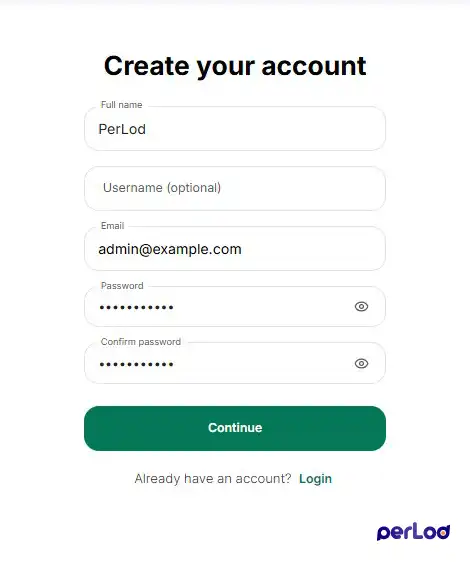
https://chat.example.comCreate an account and log in:
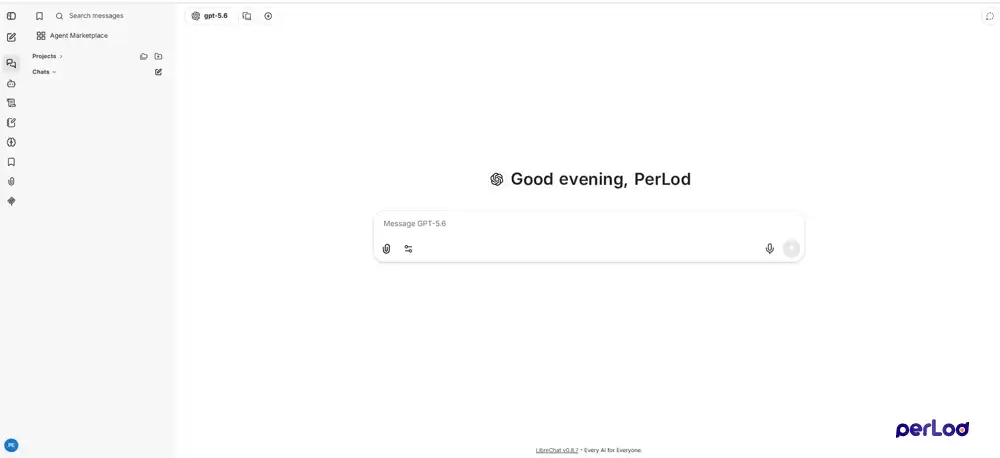
Now you reach your LibreChat deployment:
Hardening and Maintaining LibreChat on Linux VPS
To keep your self-hosted LibreChat healthy long‑term, you can follow these best practices:
- Backups: Regularly back up the
mongo_dataandmeili_datavolumes or use external MongoDB/Meili instances with managed backups. - Updates: Pull new images periodically with
docker compose pull && docker compose up -dso your self-hosted LibreChat stays current. - Monitoring: Use Nginx and container logs into your existing stack to watch performance and errors.
- Access control: Keep registration disabled, invite only known users, and consider putting LibreChat behind a VPN or SSO if you self-host LibreChat on Linux VPS for enterprises.
Tips: For centralized container logging, you can pair this LibreChat stack with Grafana Alloy and Loki using Docker. Check this guide on Centralized Docker Logging with Grafana Alloy and Loki.
Conclusion
Setting up a production-ready environment to self-host LibreChat on Linux VPS is mainly about a reliable VPS with Docker, a secure .env file, a clean docker-compose.yml, and Nginx with HTTPS in front. With those in place, you can self-host LibreChat safely, then add RAG, local models, multiple AI providers, and integrate it into your logging and security tools.
We hope you enjoy this guide. For more detailed information about remote Docker deployment, you can check the official LibreChat docs.
FAQs
Do I need a GPU to self-host LibreChat?
No. LibreChat itself runs fine on a CPU‑only Linux VPS with Docker; the main requirements are RAM, disk, and a stable network. You only need GPUs if you plan to host heavy local models on the same server instead of using cloud APIs.
Can I use LibreChat for multiple users or teams on one VPS?
Yes. You can create an admin account, disable open registration, and then invite users manually or connect SSO/OAuth.
How do I update LibreChat safely on my Linux VPS?
Stop the stack, pull new images, then start it again. Keep your .env, librechat.yaml, and volumes healthy, and test changes in a staging VPS if you’re running LibreChat for a team.

