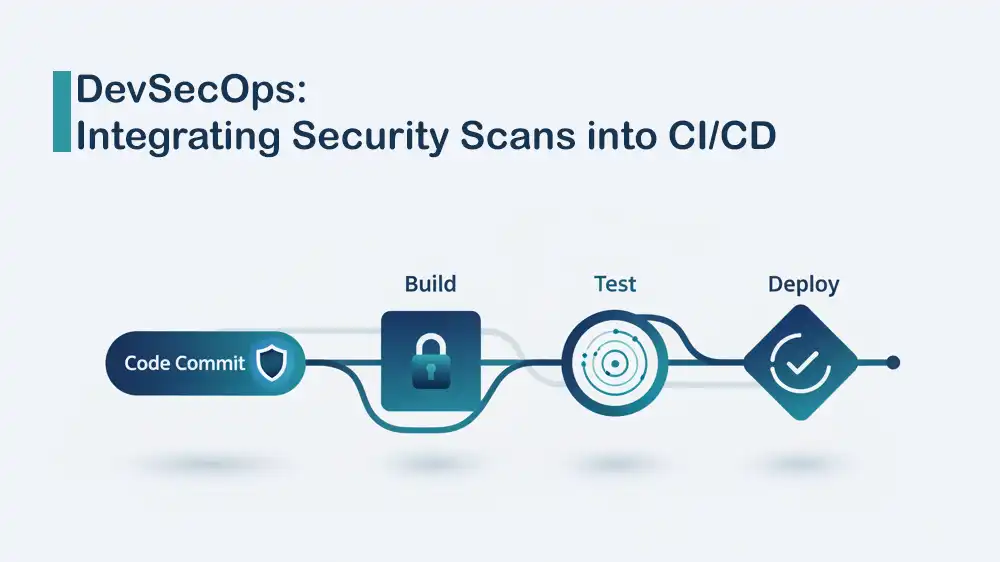
DevSecOps: Integrating Security Scans into CI/CD
DevSecOps CI/CD integration means adding security checks into your pipeline so you can find issues early, before the code reaches production. Instead of performing security checks at the end, the pipeline scans every change automatically and provides fast feedback to the team.
This article from PerLod Hosting covers secret scanning, code and dependency checks, Docker image vulnerability scanning, and basic dynamic testing on the running app.
The result is a pipeline that provides developers with fast feedback, offers auditable security signals, and helps organizations release with confidence without slowing down delivery.
Table of Contents
Requirements for DevSecOps CI/CD integration
Before you begin, you must be sure to meet the following requirements. You need a:
- GitHub account to host the repository.
- Git to push your changes, or you can edit directly in GitHub.
- Basic understanding of creating files and committing updates.
Also, if you want to run and test the sample app on your own machine, you can install Docker Desktop, but it is optional since the CI/CD pipeline itself runs on GitHub’s servers.
- OS: Ubuntu 22.04 or 24.04, Windows 10 or 11, macOS.
- Docker: Docker Desktop for Windows and macOS, Docker Engine for Linux.
- Python: 3.10+ recommended for local testing; the container will run Python from the Docker image.
Note: For consistency, it’s better to pin the runner OS instead of relying on ubuntu-latest, because ubuntu-latest can change over time. In this tutorial, we will use Ubuntu 24.04 in the workflow so the pipeline behavior is predictable.
Build an Intentionally Vulnerable Flask App for CI/CD Security Testing
You can set up a small Python Flask app that’s purposely unsafe for learning. The idea is to include a fake secret, a known outdated dependency, and a simple Dockerfile so the CI/CD pipeline can detect real findings with tools like secret scanners, dependency scanners, and container vulnerability scanners. To do this, follow the steps below:
1. Create the Repository:
- Go to GitHub and create a new repository named devsecops-demo.
- Clone it to your computer or use the Add file button on GitHub to create the following files.
2. Create the Application file:
You can create a file named app.py, which is a simple web server, and add the following code to the file:
from flask import Flask

app = Flask(__name__)

@app.route('/')
def hello():
    return "Hello, DevSecOps World! This is a vulnerable app."

if __name__ == '__main__':
    # Listen on all interfaces on port 5000
app.run(debug=True, host='0.0.0.0', port=5000)Note: debug=True is intentionally insecure and is only used here for a demo. Do not run this in production.
3. Create the dependencies:
At this point, you need to create a file named requirements.txt, and for example, we add an old version of Django intentionally so Trivy detects a vulnerability:
Flask==2.0.1
Django==2.1
requests==2.19.0
4. Create the Container Config:
Now you can make a file named Dockerfile, which tells Docker how to build your app:
# Use an official Python runtime as a parent image
# Using python:3.9-slim instead of alpine to ensure some OS-level vulns might be found for demo
FROM python:3.9-slim

# Set the working directory
WORKDIR /app

# Copy the current directory contents into the container at /app
COPY . /app

# Install any needed packages specified in requirements.txt
RUN pip install --no-cache-dir -r requirements.txt

# Make port 5000 available to the world outside this container
EXPOSE 5000

# Run app.py when the container launches
CMD ["python", "app.py"]
5. Add .gitignore and .dockerignore files:
These two files keep your repo clean and help prevent accidental leaks or bloated Docker images.
Create a file named .gitignore and add:
__pycache__/
*.pyc
.venv/
.env
Create a file named .dockerignore and add:
.git
.github
__pycache__
*.pyc
.venv
.env
6. Create a Fake Secret for Gitleaks:
Finally, you can add a dummy secret in a config file so you can confirm that secret detection is working before moving on to the CI/CD integration steps. Create a file named config_test.py or just secrets.txt and add this FAKE AWS key:
# DATABASE CONFIGURATION
DB_HOST = "localhost"
DB_PORT = 5432
# TODO: Remove this before production!
AWS_ACCESS_KEY_ID = "AKIAIOSFODNN7EXAMPLE"
AWS_SECRET_ACCESS_KEY = "wJalrXUtnFEMI/K7MDENG/bPxRfiCYEXAMPLEKEY"
Configure the DevSecOps CI/CD Workflow
In this step, you can connect everything by creating a single GitHub Actions workflow file that runs automatically on every push and pull request. The workflow file goes in .github/workflows/ and runs all security checks in order, including checking out the repo, scanning for leaked secrets, scanning code and dependencies, scanning the Docker image, then starting the app so a basic DAST scan can test it over HTTP.
This workflow uses standard GitHub Actions configs, including:
- Gitleaks runs with GITHUB_TOKEN.
- Trivy scans either files or images.
- OWASP ZAP scans a target URL with options like cmd_options and fail_action.
Note: This tutorial uses demo mode by default, so the pipeline continues, and you can see full results in the logs:
- exit-code: 0 means Trivy reports findings but won’t fail the job.
- fail_action: false means ZAP reports warnings but won’t fail the job.
If you want a strict pipeline later, you can change:
- Trivy exit-code from 0 to 1
- ZAP fail_action from false to true
You must create the .github/workflows/ directory and create a file in it named devsecops.yml. Then, add the following configuration to the file:
name: DevSecOps Pipeline

on:
  push:
    branches: [ "main" ]
  pull_request:
    branches: [ "main" ]

permissions:
  contents: read
  security-events: write

jobs:
  # PHASE 1: PRE-BUILD CHECKS
  security-check:
    runs-on: ubuntu-24.04
    steps:
      - name: Checkout Code
        uses: actions/checkout@v4
        with:
          fetch-depth: 0 # Better scan coverage for history-based scanning

      # 1. Gitleaks: Scans for secrets (API keys, passwords)
      - name: Gitleaks Secret Scan
        uses: gitleaks/gitleaks-action@v2
        env:
          GITHUB_TOKEN: ${{ secrets.GITHUB_TOKEN }}

      # 2. Trivy FS: Scans source code and requirements.txt for CVEs
      - name: Trivy FS Scan (Dependencies)
        uses: aquasecurity/trivy-action@master
        with:
          scan-type: 'fs'
          scan-ref: '.'
          hide-progress: false
          format: 'table'
          severity: 'CRITICAL,HIGH'
          ignore-unfixed: true
          exit-code: '0' # Set to '1' to fail the build on findings

  # PHASE 2: BUILD & CONTAINER SECURITY
  build-and-scan:
    needs: security-check
    runs-on: ubuntu-24.04
    steps:
      - name: Checkout Code
        uses: actions/checkout@v4

      # Build the image but don't push it yet
      - name: Build Docker Image
        run: |
          docker build -t myapp:${{ github.sha }} .

      # 3. Trivy Image: Scans the built OS (Debian/Alpine) inside Docker
      - name: Trivy Image Scan
        uses: aquasecurity/trivy-action@master
        with:
          image-ref: 'myapp:${{ github.sha }}'
          format: 'table'
          severity: 'CRITICAL,HIGH'
          ignore-unfixed: true
          exit-code: '0' # Set to '1' to fail the build on findings

  # PHASE 3: DAST (Runtime Scanning)
  dast-scan:
    needs: build-and-scan
    runs-on: ubuntu-24.04
    steps:
      - name: Checkout Code
        uses: actions/checkout@v4

      # Start the container so ZAP can attack it
      - name: Run App Container
        run: |
          docker build -t myapp:${{ github.sha }} .
          # Run on port 5000 (Host) mapped to 5000 (Container)
          docker run -d -p 5000:5000 --name test-app myapp:${{ github.sha }}
          sleep 10 # Wait for app to initialize

      # 4. OWASP ZAP Baseline Scan
      - name: OWASP ZAP Baseline Scan
        uses: zaproxy/[email protected]
        with:
          target: 'http://localhost:5000'
          cmd_options: '-a' # Includes passive scan rules
          fail_action: false # Set to true to fail on warnings
Run the CI/CD Pipeline and Verify Results
Now it’s time to run the workflow and confirm each security stage is working.
You must add all files, including app.py, Dockerfile, requirements.txt, config.py, and .github/workflows/devsecops.yml to the main branch.
Then, go to your GitHub repository page, click on the Actions tab at the top, and you will see a workflow run named DevSecOps Pipeline. Click on it, and you will see:
- Gitleaks: May fail if it detects the dummy secret you added, since it’s designed to catch hardcoded keys and tokens.
- Trivy (FS/Image): Will print vulnerability findings, and whether the job fails depends on the exit-code setting you choose.
- OWASP ZAP Baseline: Often reports warnings for missing security headers, such as X-Frame-Options, when scanning a basic demo app.
If you want to run these scans beyond GitHub-hosted runners, PerLod’s affordable VPS plans are a good fit for most small to mid projects, while Dedicated Server Hosting is better for heavier CI workloads and full isolation.
FAQs
What is DevSecOps CI/CD integration?
DevSecOps CI/CD integration means adding automated security checks directly into the CI/CD pipeline, so every push or pull request gets scanned before release.
Why does Gitleaks fail after removing the dummy secret?
If you scan the full repository history, for example, when you use fetch-depth: 0, the secret may still exist in older commits. You may need to remove the secret from git history, not just delete it in the latest commit.
Should Trivy fail the pipeline (exit-code 1) or just report findings (exit-code 0)?
For a learning demo, exit-code: 0 is useful because you can see the full pipeline complete and read all reports. For real CI/CD enforcement, switching to exit-code: 1 is common, so critical and high issues block merges or releases.
What does OWASP ZAP Baseline actually do in CI/CD integration?
ZAP Baseline performs a safe, baseline scan against a live target URL and typically flags common web security issues like missing headers. The action can be configured to fail or not fail the workflow using fail_action.
Conclusion
DevSecOps CI/CD integration is one of the easiest ways to improve security without slowing delivery, because the pipeline continuously checks every change. With this setup, the repository gets scanned for leaked secrets, vulnerable dependencies, risky container layers, and basic runtime web issues before the code reaches production.
Trivy and OWASP ZAP can be configured in demo mode for learning or switched to strict mode to block releases when serious findings are detected.
We hope you enjoy this guide. Subscribe to our X and Facebook channels to get the latest updates and articles.
For further reading:
Automated File Backups with Linux Bash Scripting

