
Automating SSL Certificate Renewal with Certbot Cron Jobs on Linux Dedicated Servers
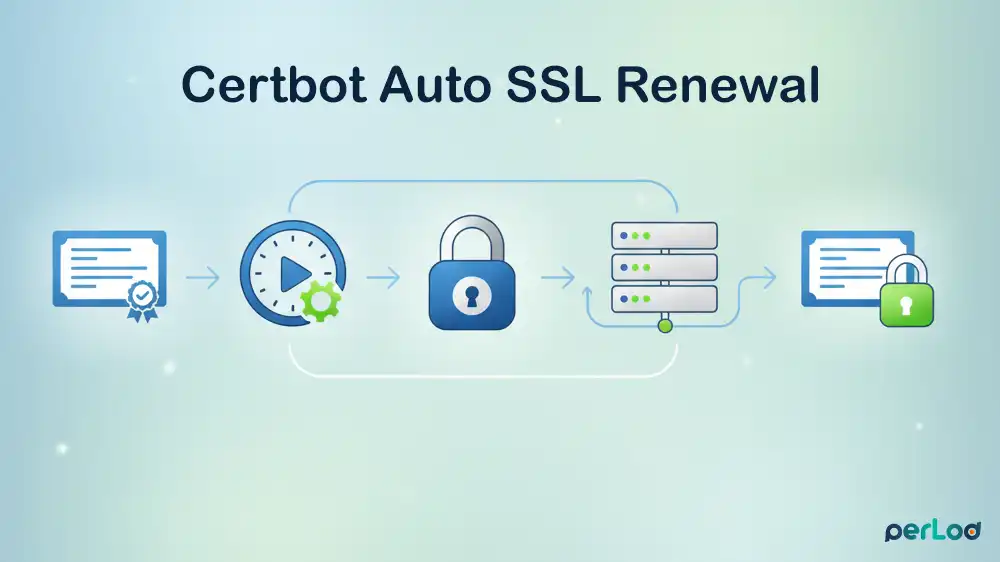
If you renew SSL certificates on a dedicated server, it’s easy to forget and can cause browser warnings, broken APIs, and lost user trust. That’s why Certbot Auto SSL Renewal matters because it removes the human checkpoint from a security task that must be done consistently and on time.
Let’s Encrypt certificates are great for security, but require a reliable renewal routine.
In this guide from PerLod Hosting, you will learn how to set up Certbot so renewals happen automatically in the background, without relying on memory and calendars. It’s built for dedicated servers where stability, predictability, and clear operational control are critical.
Table of Contents
Prerequisites for Certbot Auto SSL Renewal
Before automating SSL renewals with Certbot, make sure the server and domain are set up correctly. A clean baseline prevents renewal errors and situations where certificates renew, but your website still serves an old certificate because the web server isn’t properly configured.
What you need for this setup:
- A flexible dedicated server running a supported Linux distribution such as Ubuntu 24.04, Debian 13, RHEL 9 or 10, etc.
- Root access or a user with sudo privileges.
- A registered domain name points to your server’s public IP address.
- A working web server is installed and running, such as Nginx or Apache.
Step 1. Install Certbot on Linux Dedicated Servers
The official and most reliable method to install Certbot is to use Snap, which ensures you always have the latest version with the newest security fixes.
Most modern Linux systems have Snap by default. If you don’t have it, you can use the commands below to install it:
On Ubuntu and Debian:
sudo apt update && sudo apt install snapd -yOn RHEL, Rocky Linux, AlmaLinux:
sudo dnf update -y && sudo dnf install snapd -yEnable and create a symlink with the commands below:
sudo systemctl enable --now snapd.socket
sudo ln -s /var/lib/snapd/snap /snap
Use the command below to ensure the latest version of snapd is active:
sudo snap install core
sudo snap refresh core
Then, install Certbot with the command below:
sudo snap install --classic certbotCreate a symbolic link to make the Certbot command globally available:
sudo ln -s /snap/bin/certbot /usr/bin/certbotStep 2. Generate the Initial SSL Certificate with Certbot
Before you set up the automation, you need to successfully obtain the certificate once. You can use two options, including web server plugins or the webroot method.
Option A:
If you are running Nginx or Apache, you can get your certificates with the commands below:
sudo certbot --nginx -d example.com -d www.example.com   #Nginx
sudo certbot --apache -d example.com -d www.example.com  #Apache
Option B:
If you prefer not to let Certbot touch your web server configurations, use the webroot method. This proves you own the domain by placing a file in your website’s root directory without stopping the server.
sudo certbot certonly --webroot -w /var/www/html -d example.com -d www.example.com- certonly: Tells Certbot to obtain the cert but not install it.
- -w /var/www/html: The root path where your website files are stored.
Step 3. Understanding Certbot Renew Command
Since we are setting up a Cron Job for automation, we need to understand how renew works.
The Certbot renew command checks all certificates installed on the system and only renews certificates that are expiring in less than 30 days. If a certificate is not due for renewal, it does nothing, which makes it safe to run daily.
Before creating the cron job, verify that renewal works:
sudo certbot renew --dry-runIf you see “Congratulations, all simulated renewals succeeded,” you are ready to automate.
Step 4. Set up a Certbot Cron Job for SSL Certificate Renewal
At this point, you can configure a Cron Job to run twice per day and make the process automated while staying safe to run repeatedly.
You must ensure your web server actually starts using the renewed files. When Certbot renews a certificate, it updates the certificate files on disk, but Nginx or Apache typically keeps the previously loaded certificate in memory until the service is reloaded.
To resolve this, you can use the –deploy-hook flag to reload the web server only when a renewal actually happens. This avoids unnecessary reloads on runs where no certificate is due, reduces noise, and ensures the moment a new cert is issued, the web server immediately begins serving it.
Open the Crontab with the command below:
sudo crontab -eAdd one of the following lines to the bottom of the file, depending on your web server:
If using Nginx:
0 0,12 * * * /usr/bin/certbot renew --quiet --deploy-hook "systemctl reload nginx"If using Apache:
0 0,12 * * * /usr/bin/certbot renew --quiet --deploy-hook "systemctl reload apache2"Note: Do not use –post-hook here. Post-hooks run every time the command runs (even if no renewal happened), which is unnecessary. The deploy-hook is the efficient choice.
Step 5. Manage Certbot Systemd Timer and Verify Cron Renewals
When Certbot is installed via Snap, it commonly comes with a built-in systemd timer (snap.certbot.renew.timer) that already schedules automatic renewals.
Before relying on your custom Cron Job, it’s important to decide whether to keep the default timer or disable it to ensure Cron is the only mechanism controlling renewals.
- Keep both: Certbot is smart enough to see the cert is already valid and skip it.
- Disable the systemd timer: If you want your Cron job to be the only automation mechanism.
To stop the default timer, you can run:
sudo systemctl stop snap.certbot.renew.timer
sudo systemctl disable snap.certbot.renew.timer
The final step is validating that your automation is actually running by checking your active crontab entries and reviewing system logs
Check the Crontab listing with the command below:
sudo crontab -lCheck Cron Logs with the following command:
grep "certbot" /var/log/syslogOR on some RHEL systems, you can run:
grep "certbot" /var/log/cronThat’s it, you’re done with Certbot Auto SSL Renewal with Cron Jobs on Linux Dedicated Servers.
FAQs
What’s the difference between post-hook and deploy-hook?
The post-hook runs every time certbot renew executes, regardless of whether a renewal happened. The deploy-hook runs only when a certificate is successfully renewed. For web server reloads, always use –deploy-hook to avoid unnecessary service interruptions.
What if my SSL certificate renewal fails 30 days out?
If renewal fails, Certbot logs the error. It will not attempt renewal again until you manually run certbot renew or the Cron job runs again.
How can I verify the Certbot renewal is actually working before it’s needed?
Run Certobot dry run, which performs a complete renewal simulation without issuing a new certificate. If it succeeds, your setup is correct.
Conclusion
Automating SSL certificate renewals with Certbot Cron Jobs removes the risk of expired certificates disrupting your services. With this setup, your SSL certificates will renew automatically without manual intervention, keeping your website secure and your users protected.
We hope you enjoy this Certbot Auto SSL Renewal guide. Subscribe to our X and Facebook channels to get the latest updates and articles.
Remember to check out PerLod Hosting, which offers high-performance Linux dedicated servers with root access and 24/7 support, ideal for SSL automation and production workloads.
For further reading:

