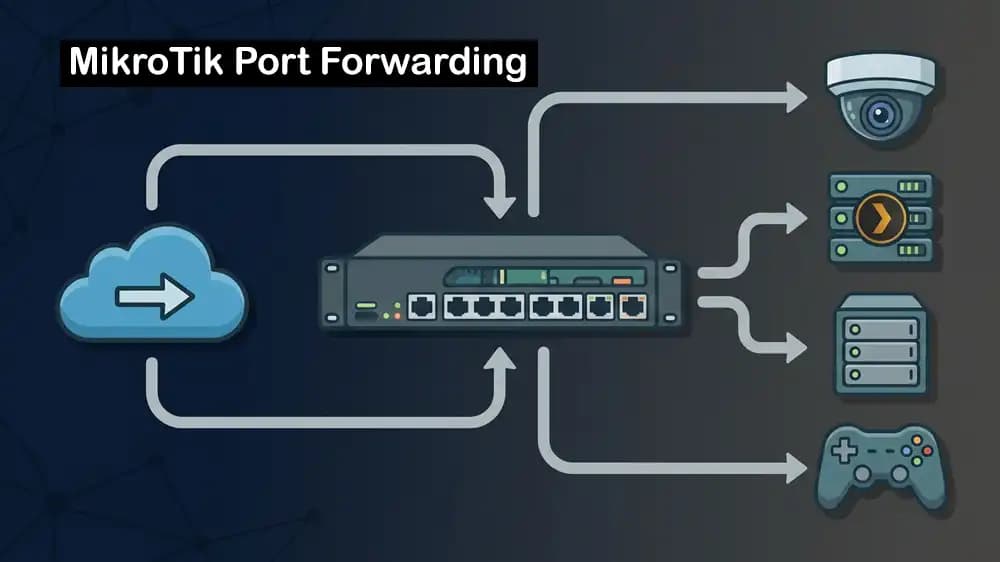
If you run cameras, Plex, a NAS, or game servers at home, you will quickly meet one key topic, which is MikroTik port forwarding. It means taking traffic that comes from the internet to your public IP and sending it to a device inside your LAN on a specific port. In RouterOS, this is done with a NAT rule using the dstnat chain and the dst-nat action.
This guide shows how to safely open ports in RouterOS, with real examples and basic security practices.
How MikroTik Port Forwarding Works in RouterOS
Your MikroTik router normally hides all private IPs behind one public IP using NAT, so outside users cannot directly reach devices in your LAN. MikroTik port forwarding is an exception rule that tells the router, when traffic comes to this port on WAN, forward it to this internal IP and port.
You can proceed to the following steps to see which requirements you need to set up the port forwarding rule.
Requirements to Port Forward on MikroTik
Before you build rules, you must confirm you really have a public IPv4, and not CGNAT, or your MikroTik port forwarding will never work from the outside world.
On your router, check IP > Addresses for the WAN interface IP and compare it with an external " What is my IP" site; if WAN shows 10.x, 100.64.x, or 192.0.0.x while the site shows another IP, you are behind CGNAT and need a public IP, VPN, or VPS instead.
Basic Firewall Login Behind MikroTik Port Forwarding
By default, a secure RouterOS setup blocks new incoming connections from WAN to LAN, so random internet traffic cannot reach your devices. Port forwarding only works when your dst-nat rule is combined with a matching firewall filter “accept” rule in the forward chain for the specific ports and protocols you open.
If you are new to RouterOS security, first review MikroTik's firewall best practices guide to avoid exposing your router by mistake.
Identify WAN, LAN, and Static IPs
For stable access, you should give your CCTV, Plex, NAS, or game server a static IP in your LAN, either with a DHCP lease reservation or a manual IP.
Then MikroTik port forwarding can always point to the same internal IP, for example, 192.168.88.10 for NVR, 192.168.88.20 for Plex, 192.168.88.30 for NAS, and 192.168.88.40 for your game server.
Example layout:
- WAN interface: ether1, IP from ISP
- LAN bridge: bridge-local, subnet
192.168.88.0/24
- Devices given fixed IPs on this subnet
Port Forward on MikroTik for CCTV and NVR
Most DVR and NVR systems use a few ports like HTTP (80 or 8080), RTSP (554), and a custom port for the mobile app, such as 8000 or 37777. MikroTik port forwarding for CCTV means you forward these exact ports from WAN to the NVR’s fixed LAN IP, and then allow them in the firewall.
Winbox configuration, for example, NVR is 192.168.88.10 and TCP port 8000:
Go to IP > Firewall > NAT, click + to add a new rule, and on the General tab:
- Chain: dstnat
- Protocol: tcp
- Dst. Port: 8000
- In. Interface: your WAN interface, for example. ether1
On the Action tab:
- Action: dst-nat
- To Addresses:
192.168.88.10
- To Ports: 8000
Click OK.
Now you must add the matching firewall rule. Go to IP > Firewall > Filter, click +, and on the General tab:
- Chain: forward
- Protocol: tcp
- Dst. Address:
192.168.88.10
- Dst. Port: 8000
- In. Interface: ether1 (WAN)
On the Action tab:
Place this rule above the final drop rules for WAN forward and click OK.
At this point, MikroTik port forwarding gives you remote access to your NVR UI, or by using a dynamic DNS name instead of the IP.
http://your-public-ip:8000
Port Forward on MikroTik for Plex Media Server
Plex by default uses TCP 32400 for remote access when you enable remote access in Plex settings. With MikroTik port forwarding, you map TCP 32400 from the WAN to the Plex server LAN IP, then test from outside.
Assume Plex server IP: 192.168.88.20, port: 32400
Create NAT rule by navigating to IP > Firewall > NAT, click +, and General:
- Chain: dstnat
- Protocol: tcp
- Dst. Port: 32400
- In. Interface: ether1 (WAN)
In the Action tab:
- Action: dst-nat
- To Addresses:
192.168.88.20
- To Ports: 32400
Also, create a firewall filter rule by going to IP > Firewall > Filter, click +, and in the General tab:
- Chain: forward
- Protocol: tcp
- Dst. Address:
192.168.88.20
- Dst. Port: 32400
- In. Interface: ether1
Action: accept and move above the WAN drop rule.
Once this MikroTik port forwarding is in place, open the Plex Web UI, go to Settings > Remote Access, and click Retry to confirm Plex sees your server as reachable from outside.
MikroTik Port Forwarding for NAS
For a NAS, you should be more strict because it holds your files; never expose SMB (445) or unencrypted admin ports directly if you can avoid it. If you still use MikroTik port forwarding for a NAS, forward only HTTPS or specific app ports, change defaults, and limit allowed source IPs when possible.
Assume NAS IP: 192.168.88.30, HTTPS admin port: 5001
For NAT rule, navigate IP > Firewall > NAT, click +, and General:
- Chain: dstnat
- Protocol: tcp
- Dst. Port: 5001
- In. Interface: ether1
Action:
- Action: dst-nat
- To Addresses:
192.168.88.30
- To Ports: 5001
Filter rule with optional IP limit by navigating to IP > Firewall > Address Lists, and click +:
- Name: trusted-admins
- Address: your office static IP, for example,
203.0.113.10
Then, go to IP > Firewall > Filter, click +, and General:
- Chain: forward
- Protocol: tcp
- Dst. Address:
192.168.88.30
- Dst. Port: 5001
- In. Interface: ether1
- Src. Address List: trusted-admins
Set Action: accept.
Now MikroTik port forwarding exposes your NAS admin only to IPs in the trusted-admins list, which is much safer.
Note: For internet-facing services, you can offload them to a hardened MikroTik VPS in a data center instead of your home router.
Port Forwarding for Game Servers on MikroTik
Game servers usually use UDP or mixed UDP and TCP ports. For example, many Steam games use 27015, Minecraft uses 25565 TCP/UDP, and others have their own ranges. MikroTik port forwarding here means you create rules for the exact ports in the game’s documentation, making sure you choose the right protocol for each.
Example setup for Minecraft Java Edition server:
- Server IP:
192.168.88.40
- Port: 25565 TCP and sometimes UDP
For NAT rule, IP > Firewall > NAT, +, and General:
- Chain: dstnat
- Protocol: tcp
- Dst. Port: 25565
- In. Interface: ether1
Action:
- Action: dst-nat
- To Addresses:
192.168.88.40
- To Ports: 25565
Repeat the same steps for UDP by setting Protocol to udp.
For filter rules, IP > Firewall > Filter, +, and General:
- Chain: forward
- Protocol: tcp
- Dst. Address:
192.168.88.40
- Dst. Port: 25565
- In. Interface: ether1
Action: accept
Also, repeat with the UDP protocol.
With this MikroTik port forwarding in place, external players connect to your public IP or dynamic DNS name on port 25565 and reach your local game server.
Testing and Troubleshooting Port Forwarding in MikroTik
After each new rule, test from outside your network, not from inside, because some ISPs or routers do not support hairpin NAT by default. If MikroTik port forwarding fails, check three things:
- Connection tracking to see if the dst-nat rule is hit.
- Firewall filter counters to see if packets are dropped.
- Your ISP is set up to make sure there is no CGNAT or extra modem NAT in front.
Safer Options than Port Forwarding in MikroTik
Every open port is a possible attack path, especially for services like RDP, camera UIs, and NAS admin panels. Instead of relying only on MikroTik port forwarding, you can run WireGuard, L2TP/IPsec, or SSTP on the router and access your LAN through VPN, so nothing except the VPN port is exposed.
For extra safety, you can pair your home router with a hardened PerLod MikroTik VPS or a VPN-based access setup so only trusted users can reach your internal services.
Conclusion
For simple access to CCTV, Plex, NAS apps, and game servers, MikroTik port forwarding gives a quick way to reach your devices from the internet with a few NAT and firewall rules.
For anything sensitive or business-critical, it is better to combine MikroTik port forwarding with strong passwords, IP-based access control, VPN, and, where possible, move public-facing services to a VPS instead of exposing your home network.
We hope you enjoy this guide.