If you have been running n8n on a small server and your workflows are starting to slow down, fail under load, or block each other, this guide is for you. When you scale n8n with queue mode, you separate the editor from the heavy execution work, add Redis as a message broker, and let dedicated workers handle the processing. The result is a much faster and more stable automation setup.
How to Scale n8n in Queue Mode
Updated on Aug 18, 2026
Mila H
9 MINS READ
Table of Contents
- What is Queue Mode in n8n?
- How Queue Mode Works Internally
- What You Need Before Starting to Scale n8n with Queue Mode
- Setting Up Queue Mode with Docker Compose
- Scaling n8n Workers
- Adding a Dedicated Webhook Processor
- Understanding n8n Queue Mode Concurrency Settings
- How to Set Concurrency Correctly
- Key Environment Variables for n8n Queue Mode
- Execution Pruning in Queue Mode to Keep the Database Healthy
- Performance Tuning Tips for Queue Mode in n8n
- When to Move from a VPS to a Dedicated Server for n8n
- Conclusion
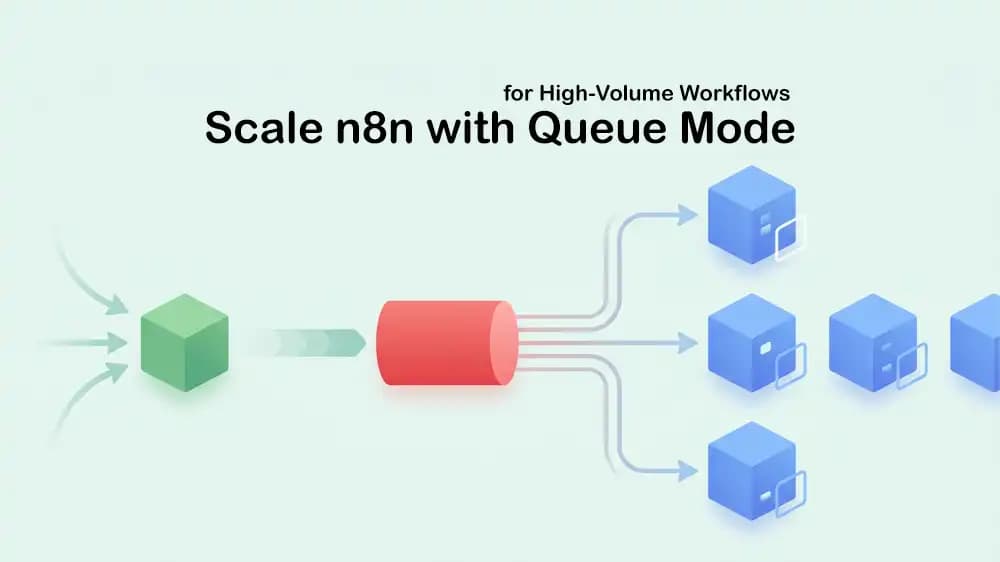
What is Queue Mode in n8n?
By default, n8n runs everything in a single process. The editor, the webhook listener, the scheduler, and the actual workflow execution all share the same Node.js process. When you get more traffic or run heavier workflows, that single process starts to struggle. Jobs stack, the UI becomes slow, and webhooks may start timing out.
Queue mode solves this by splitting responsibilities across multiple processes:
- Main instance: Handles the editor UI, the API, scheduling triggers, and incoming webhooks. It creates job entries but does NOT run them.
- Redis: Acts as the message queue. The main instance drops job IDs into Redis, and workers pick them up from there.
- Workers: One or more separate n8n processes that pull jobs from Redis, run the workflows, and save results to the database.
This design means your editor stays fast no matter how many workflows are running in the background. Workers can also be added or removed without touching the main instance.
How Queue Mode Works Internally
Here is what happens every time a workflow gets triggered in queue mode:
- The main n8n instance receives a webhook call or a scheduled trigger fires.
- The main instance generates an execution ID and pushes it to the Redis queue.
- An available worker picks up that execution ID from Redis.
- The worker fetches the workflow details from the PostgreSQL database.
- The worker runs the workflow and writes the results back to the database.
- The worker notifies Redis that the job is done.
- Redis notifies the main instance.
Redis never stores workflow data itself; it only passes execution IDs. The database is always the source of truth.
What You Need Before Starting to Scale n8n with Queue Mode
Before you scale n8n with queue mode, make sure you have the following requirements ready:
- Docker and Docker Compose are installed on your server.
- PostgreSQL 13+. SQLite is not supported in queue mode.
- Redis 6+ is used as the message broker.
- A Linux VPS or dedicated server with at least 4 vCPU and 8 GB RAM for real production use.
- Your existing n8n encryption key (N8N_ENCRYPTION_KEY), all workers must share this same key.
If you have not set up n8n on a VPS yet, you can check this guide on Setting up n8n on a VPS. Then, proceed to the following steps to scale n8n with queue mode.
Setting Up Queue Mode with Docker Compose
The cleanest way to scale n8n with queue mode is Docker Compose. Below is a production-ready Docker Compose YAML file that includes the main instance, one worker, Redis, and PostgreSQL.
You can update your Docker compose file with:
YAML
Also, update the .env file to:
Bash
Start the stack and check that all containers are running:
Bash
Scaling n8n Workers
This is the real power of scale n8n with queue mode. You can add more workers with a single command:
Bash
This brings up three worker containers. Each one connects to the same Redis queue and the same PostgreSQL database and starts pulling jobs independently. If one worker is busy, another picks up the next job. There is no single bottleneck.
You can also scale back down when the load drops:
Bash
Adding a Dedicated Webhook Processor
By default, the main instance handles webhooks. Under heavy webhook traffic, this can slow down the editor. The fix is to run a separate webhook processor.
Add this to your Docker Compose YAML file:
YAML
Then disable webhook handling on the main process by adding this to your .env file:
Bash
Now configure your reverse proxy to route traffic like this:
/webhook/*: Webhook processor./webhook-waiting/*: Webhook processor./webhook-test/*: Main instance.- Everything else: Main instance.
Do not add the main process to the webhook load balancer pool; this causes degraded UI performance.
Understanding n8n Queue Mode Concurrency Settings
When you scale n8n with queue mode, there are two separate concurrency settings you need to understand.
1. Per-Worker Concurrency:
Each worker has its own --concurrency flag. This controls how many workflows a single worker can run at the same time. The default is 10.
Bash
Or you can set it in your Docker Compose command:
YAML
2. Global Production Limit:
The environment variable N8N_CONCURRENCY_PRODUCTION_LIMIT acts as a global cap across all workers. If this is set, it overrides the per-worker --concurrency value.
Bash
If this variable is not set or is set to -1, the worker falls back to its own --concurrency value, which defaults to 10.
How to Set Concurrency Correctly
n8n recommends setting worker concurrency to 5 or higher. Setting it too low with many workers can exhaust your database connection pool and cause delays.
A good starting point includes:
Key Environment Variables for n8n Queue Mode
Here are the most important environment variables when you scale n8n with queue mode:
Execution Pruning in Queue Mode to Keep the Database Healthy
As you scale n8n with queue mode and run more workflows, the execution history table in PostgreSQL grows fast. Without pruning, it will slow down your queries over time.
n8n has built-in pruning that runs on a schedule. Executions are deleted when either condition is met:
- They are older than EXECUTIONS_DATA_MAX_AGE hours. default: 336 hours / 14 days.
- The total count exceeds EXECUTIONS_DATA_PRUNE_MAX_COUNT. default: 10,000.
Here are the recommended settings for a busy production setup:
Bash
- 168 hours = 7 days. Keep it at 7 to 14 days, depending on your audit needs.
- 50,000 max count gives you a buffer without letting the database grow without limits.
- Pruning first soft-deletes records, then hard-deletes them later, so there is no sudden spike in database load.
Performance Tuning Tips for Queue Mode in n8n
These are practical tweaks that make a real difference once you start running scale n8n with queue mode in production:
Redis:
- Run Redis with persistence disabled (--save "") unless you specifically need durability. This speeds up Redis significantly.
- Keep Redis on the same private network as n8n. Network latency adds up when you have thousands of jobs per hour.
- Use Redis 7 or later for better performance and stability.
PostgreSQL:
- Keep PostgreSQL on NVMe storage for fast reads and writes.
- Add indexes on the workflow_entity and execution_entity tables, specifically on workflowId, startedAt, and status.
- Back up PostgreSQL nightly. It is the single source of truth for your entire n8n setup.
Workers:
- Use health checks to auto-restart stuck workers. Enable
QUEUE_HEALTH_CHECK_ACTIVE=trueand configure your Docker health check or Kubernetes liveness probe against the /healthz endpoint. - Give each worker process a unique event log file if they share a filesystem, to avoid log conflicts.
- Small multiple workers beat one large worker. They parallelize and handle bursts better.
Monitoring:
Watch these signals to know when your setup is healthy or needs more resources:
- Queue depth: jobs waiting in Redis
- Execution time: Is it increasing over time?
- Worker health: Are workers connected and actively picking jobs?
- Database connections: approaching pool limits?
- Redis latency: any timeout errors in logs?
Prometheus and Grafana work well together here. n8n exposes a /metrics endpoint on workers that you can scrape.
When to Move from a VPS to a Dedicated Server for n8n
If you are running a few hundred executions per day on a 2 vCPU / 4 GB VPS, a small-scale n8n with queue mode setup works fine. But there are clear signs that you have outgrown a small VPS:
- The queue depth keeps growing and never drains fully.
- Execution times are increasing even though your workflows have not changed.
- CPU is consistently above 80% during execution spikes.
- You need more than 4 workers to keep up.
- PostgreSQL queries are getting slow due to the execution table size.
At that point, moving to a high-performance dedicated server gives you dedicated CPU cores, faster NVMe storage, and the space to run 8 or more workers with higher concurrency. A dedicated server means no noisy neighbors sharing your CPU, which matters a lot for consistent execution latency.
If a VPS still works for your volume, PerLod's Linux VPS plans offer a great starting point to scale n8n with queue mode without the cost of a full dedicated server.
Conclusion
Scale n8n with queue mode is the right move once you go beyond simple personal automation. The setup is not complicated, Redis acts as the middleman, workers do the heavy lifting, and the main instance stays clean and responsive. With Docker Compose, you can go from a single container to a multi-worker production setup in under an hour.
For more details and the latest options, you can check the official Configuring queue mode.
Yes. The editor runs on the main instance and is completely separate from workers. Your UI stays responsive regardless of execution load.
PostgreSQL 13 or higher. SQLite is not supported in queue mode.
Each worker defaults to 10 concurrent jobs. You can change this with the --concurrency flag or the N8N_CONCURRENCY_PRODUCTION_LIMIT environment variable.
Prev PostInstall Qdrant on a Linux VPS and Build a RAG-Ready Vector Database
Next PostHow to Deploy LiteLLM Proxy on a VPS for a Unified OpenAI-Compatible API
Category:Performance & Scaling
Tag: